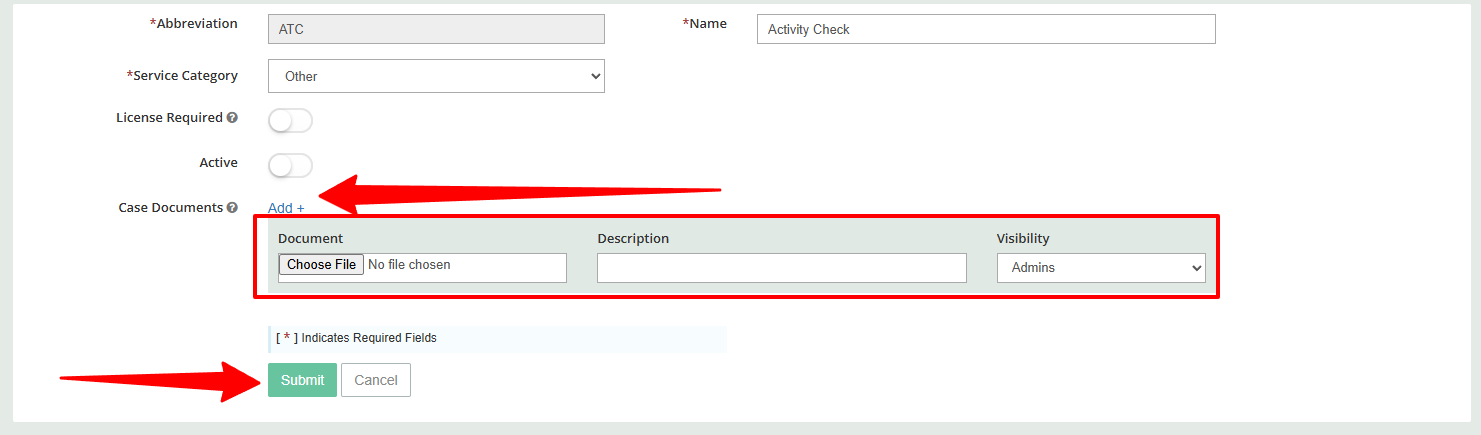
The way this works is that every time you open up a specific case service, documents that are attached to the case service will populate into the documents tab automatically when the service is added to a case. This is great for protocols, procedures, etc. Essentially its for documentation that's going to be needed across all cases for a specific service.
- Click Settings from the left-hand navigation bar.
- Under Case Customization, click Service.
- Locate the service you want to update and click the Edit icon.
The Edit icon appears as a square with a small pencil inside it. - In the Case Documents section, click Add +.
Use the Add + button if you need to attach multiple documents to the service. - Click Choose File to upload your document.
This will open your computer’s File Explorer, allowing you to select the file from your PC or laptop. - After uploading the document, you can:
- Add a description
- Set the document visibility
- Once all documents have been added and configured, click Submit to save your changes.